
Build a shed idea, step by step.
Use this red double-door shed as inspiration, then follow the builder screens to plan your own version.
Open the builder in a new tab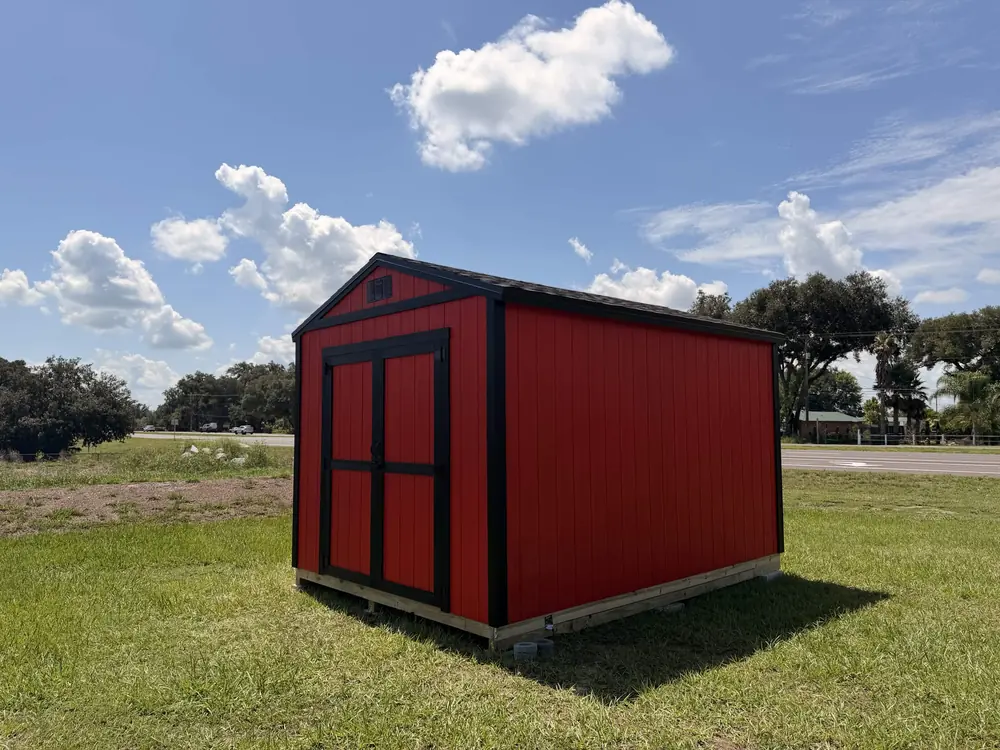
This photographed Patriot shed is our starting idea: red siding, black trim, double doors, and a traditional gable roof. The screenshots below come from the actual 3D shed builder, not a separate illustration.
For the walkthrough, we will use a 10 × 12-foot footprint and 8-foot walls. Those dimensions are examples, not verified measurements of the photographed shed. The guide creates a starting design with a similar exterior, not an exact as-built copy.
Use Open the builder in a new tab above to keep these instructions nearby. The tool has six steps: Base, Structure, Finish, Openings, Access, and Review. You can return to a step whenever you need to change a choice.
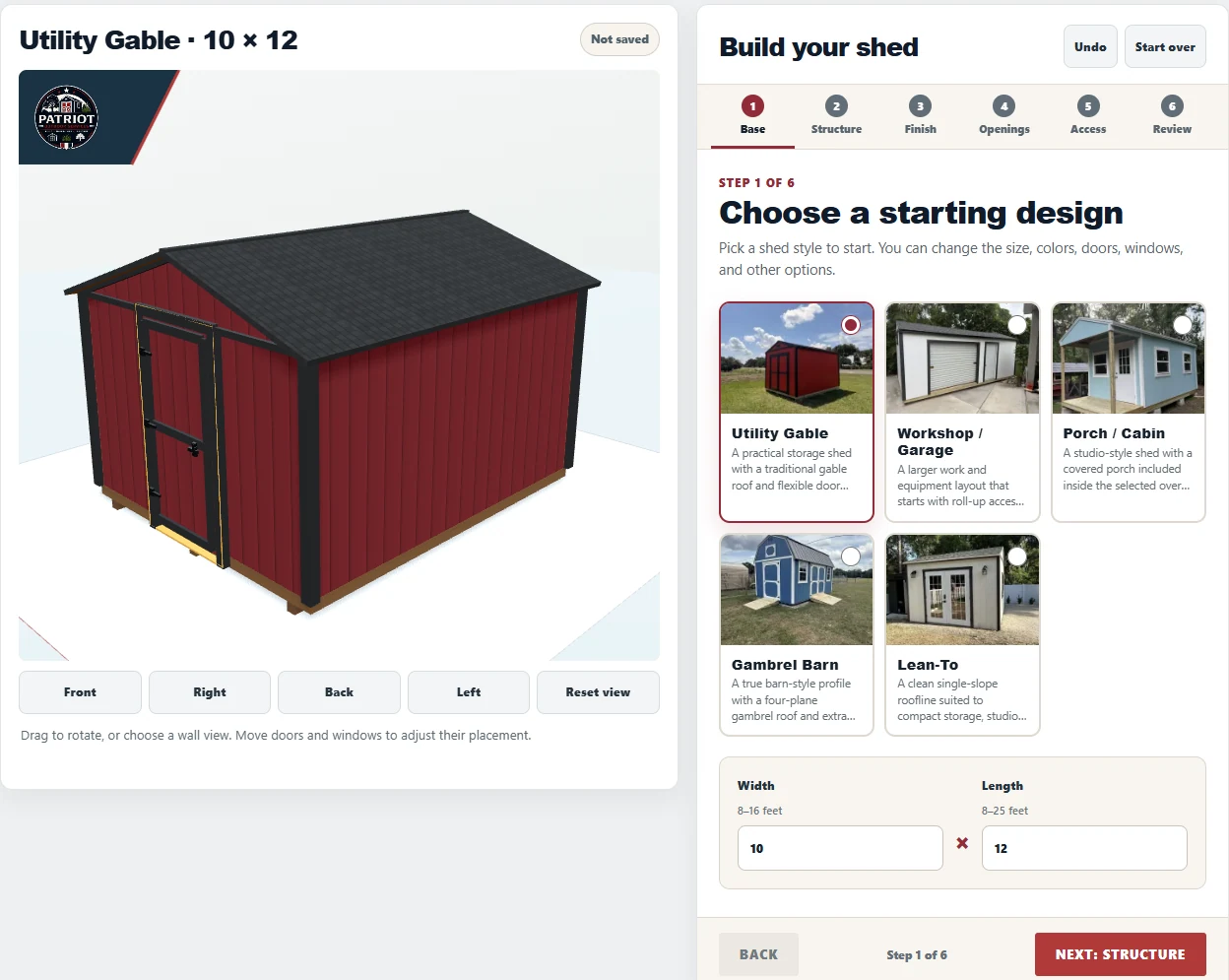
1. Base: choose the style and footprint.
In Base, select Utility Gable. It starts with a simple storage layout and a gable roof. Set Width to 10 and Length to 12, then choose Next: Structure.
- Width: 10 feet.
- Length: 12 feet.
- Keep the Utility Gable model selected.
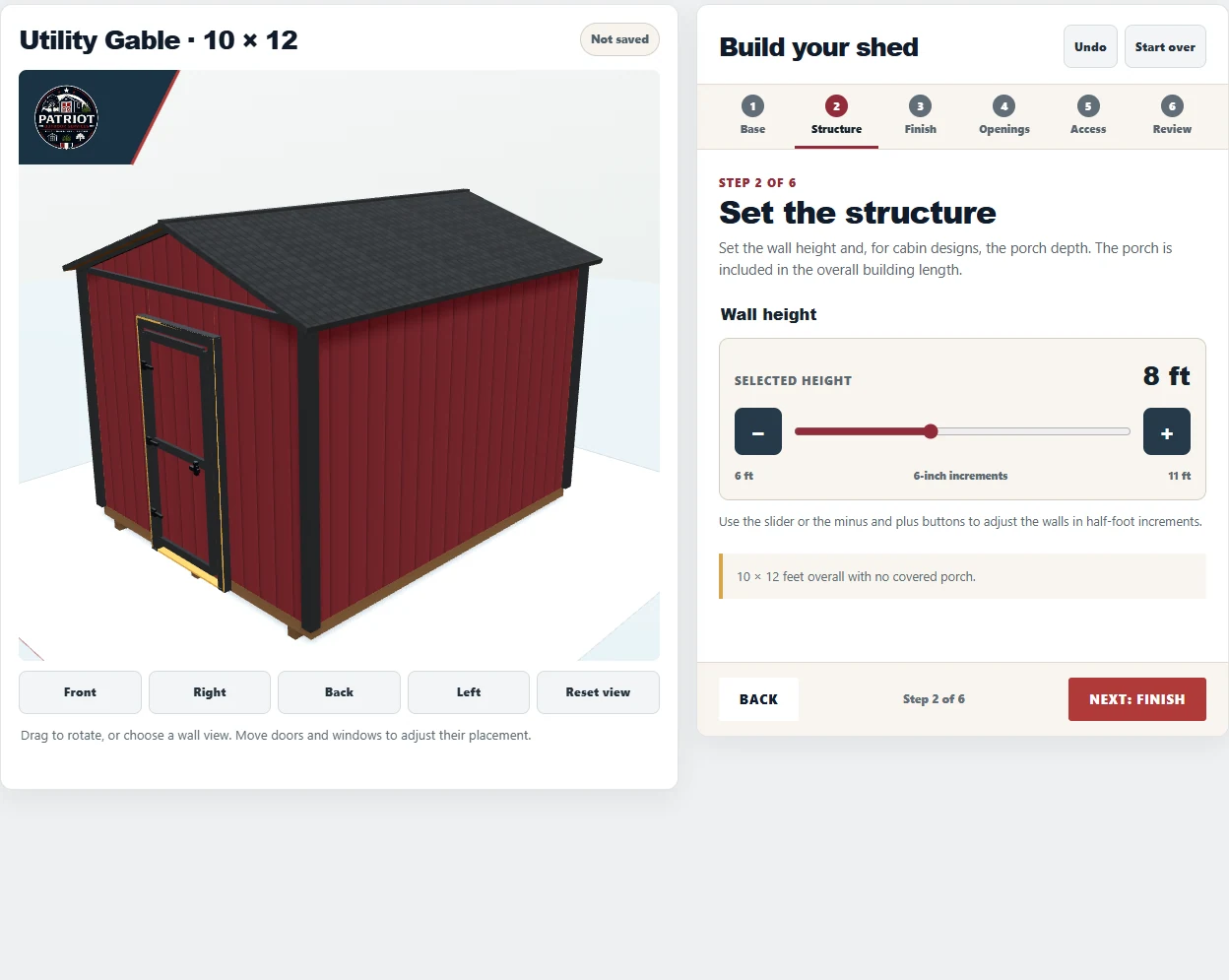
2. Structure: set the wall height.
Use the Wall height slider or the plus button until Selected height reads 8 ft. This is the wall height, not the overall height at the roof peak. Our example has no porch.
Choose Next: Finish when the height is right.
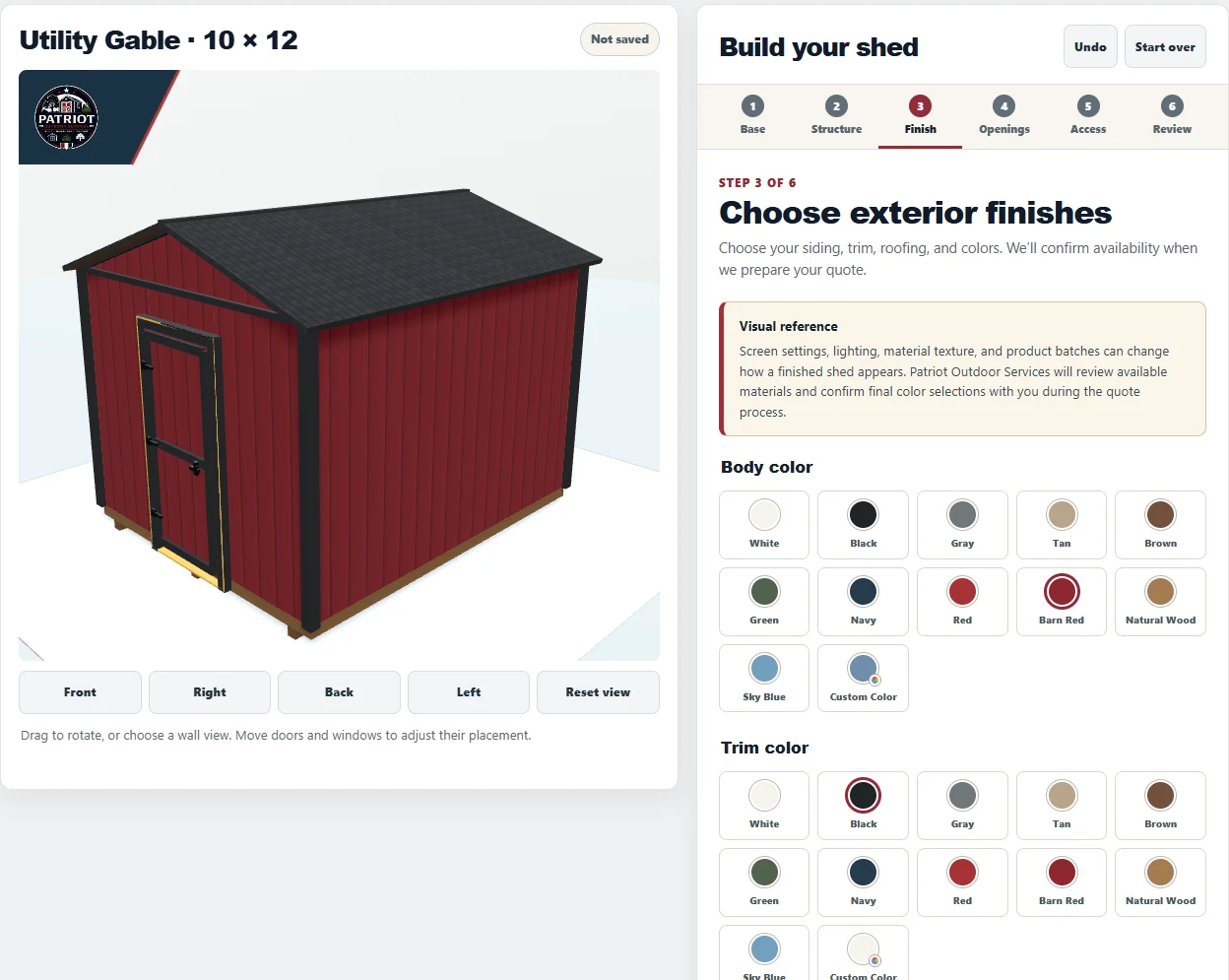
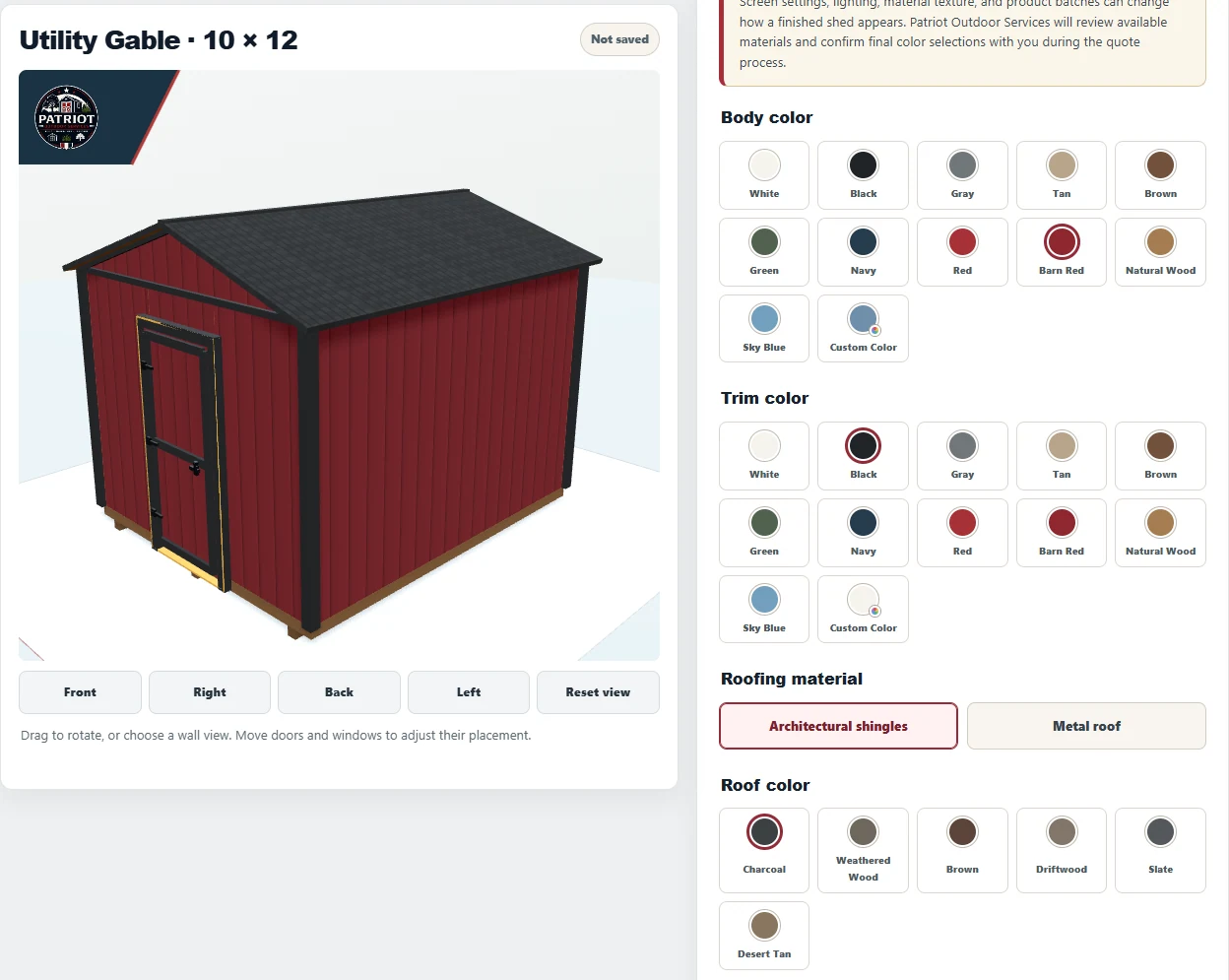
3. Finish: choose the siding and trim colors.
The Utility Gable already starts close to this color combination. Under Body color, keep or select Barn Red. Under Trim color, keep or select Black. Single and double shed doors follow the body color, so the double doors we add later will also be Barn Red.
The colors on your screen are a visual reference. Patriot will confirm the available materials and final color choices during the quote review.
Still in Finish: choose the roofing.
Scroll down in Finish to Roofing material. Select Architectural shingles, then choose Charcoal under Roof color. The gable shape comes from the Utility Gable model; this choice sets the roof material and color.
Choose Next: Openings to plan the doors and windows.
4. Openings: replace the single door with double doors.
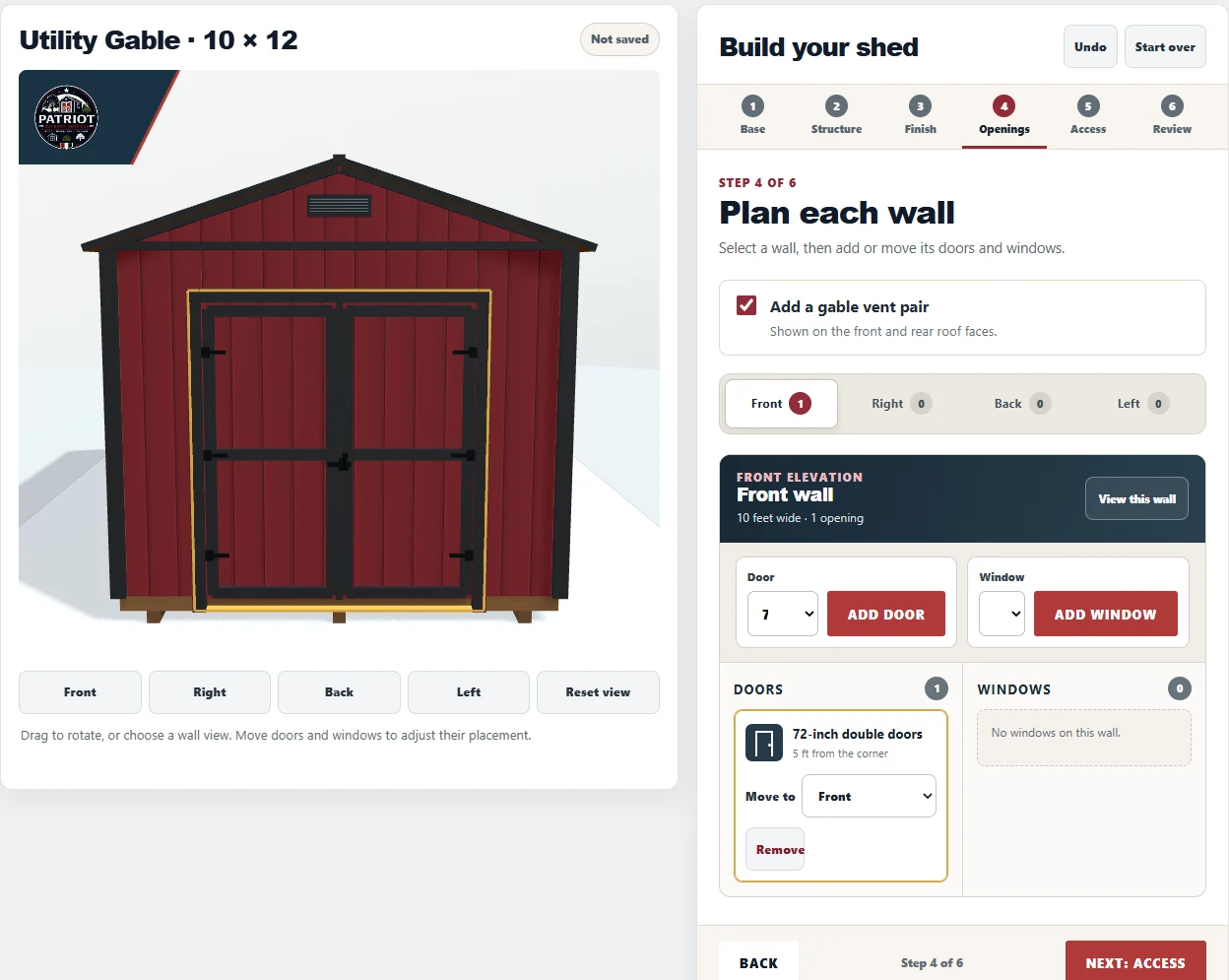
Select the Front wall tab. Use Remove on the existing 36-inch single shed door. Then select 72-inch double doors in the Door menu and choose Add door.
With the wall empty first, the new double doors are added at the center. On this 10-foot front wall, the opening card should show 5 ft from the corner. Leave the doors centered for this example.
To change a layout, drag an opening along its wall in the 3D preview. The opening card's Move to menu changes which wall it is on. Choose View this wall for a straight-on preview.
- Turn on Add a gable vent pair. The tool shows one on the front and one on the back.
- Do not add windows for this example.
- Check Right, Back, and Left: they should have no doors or windows.
5. Access: leave the door without a step or ramp.
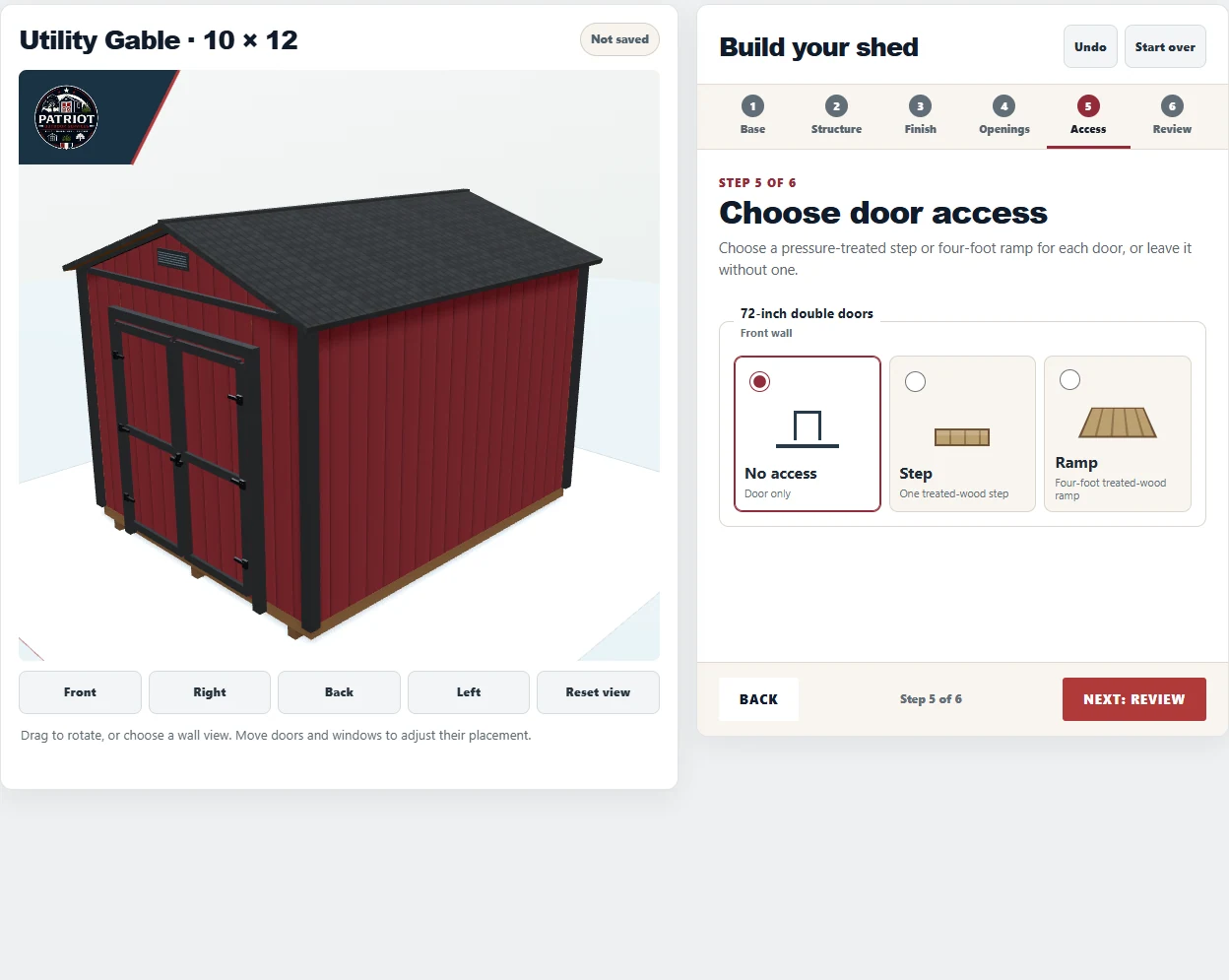
Choose Next: Access. Select No access for the front double doors. In this menu, that means door only, without an added step or ramp.
For your own shed, Step and Ramp are alternatives. Include any outside space they need in your site planning, then discuss the finished approach with Patriot.
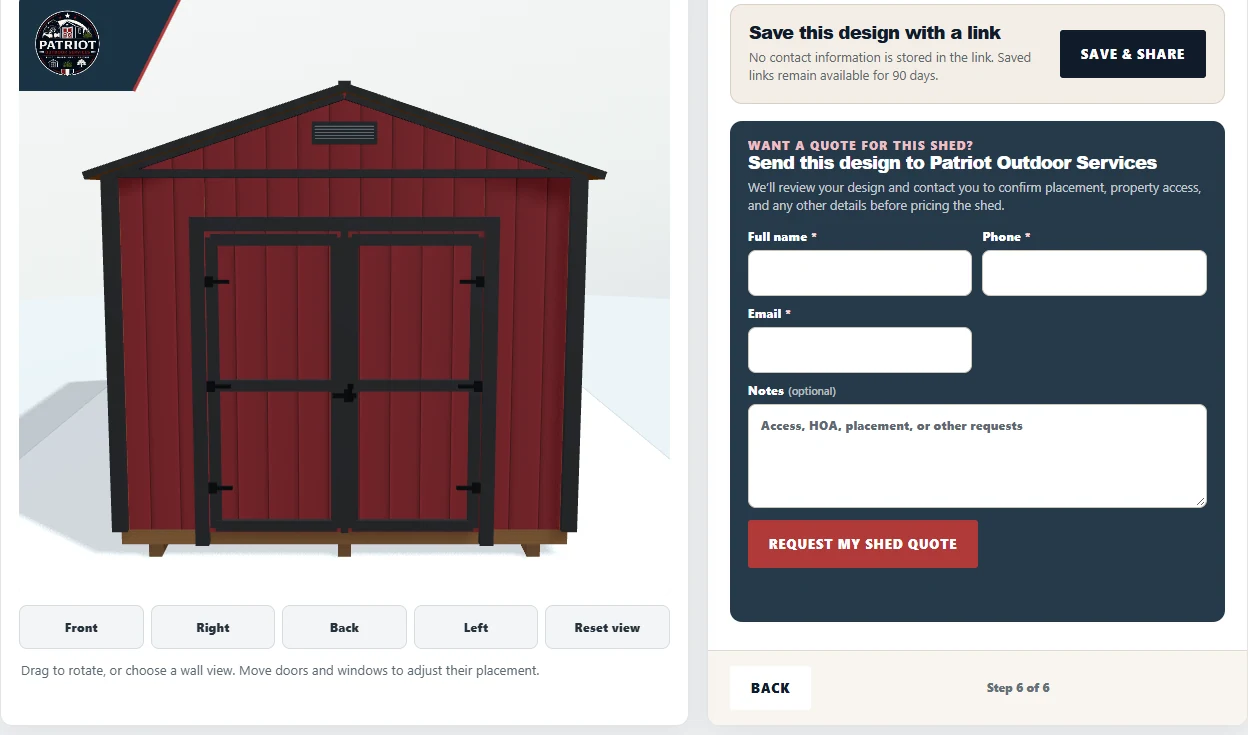
6. Review: check every side.
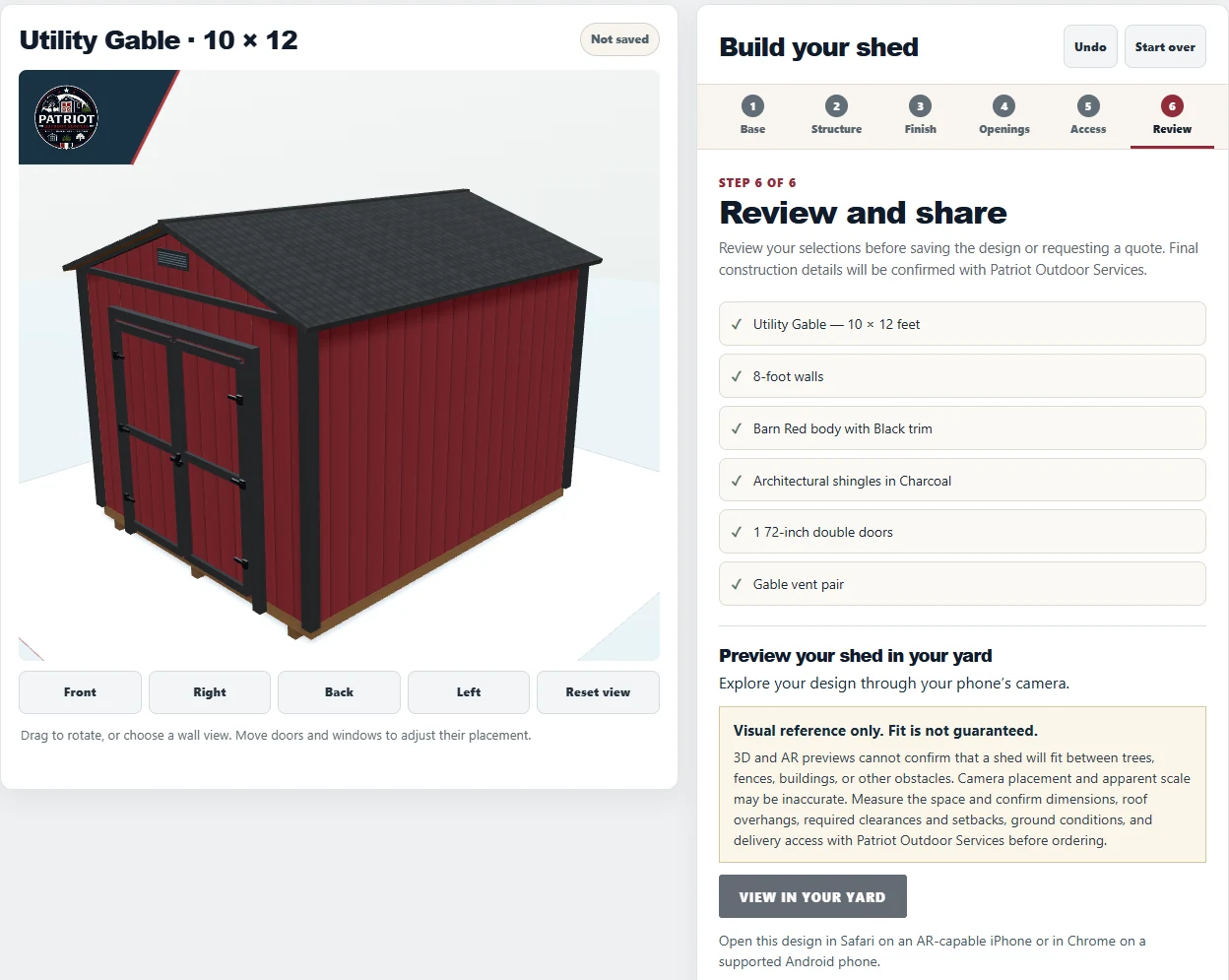
Choose Next: Review and read the selections. Use Front, Right, Back, and Left beneath the preview to inspect each side. Reset view returns to the angled overview.
If something needs changing, return to its step. On a phone, Choose your options brings you back from the preview to the controls.
- 10 × 12-foot Utility Gable with 8-foot walls.
- Barn Red body, Black trim, and Charcoal architectural shingles.
- One centered front double door, a gable vent pair, and no windows, porch, step, or ramp.
Still in Review: save your idea or ask for a quote.
To keep a link, choose Save & Share, then Copy link. Changing options does not automatically create a shareable link. Saved links remain available for 90 days; when you reopen one, choose Customize a copy if you want to edit it.
To send the design to Patriot, enter Full name, Phone, and Email. Use Notes for the project address, intended use, access details, or anything you are unsure about. Choose Request my shed quote when you are ready. Submitting a request does not calculate a price; Patrick will discuss the design, site details, and pricing with you.
On a compatible phone, View in your yard offers an AR visual reference. It cannot guarantee fit between trees, fences, or other obstacles. Measure the actual space and confirm the site, clearances, and approval requirements with Patriot before committing to a build.
Ready to plan yours?
Build a starting design, or contact Patrick to talk through the space, the site, and pricing.